When a Professional Licensure/Certification (PLC) form reaches a new step in the automated workflow process, the reviewer(s) assigned to that step will receive an email notification that a new form is ready for review. Reviewers can either click on the Page Approval link that is included in that automated email or navigate directly to the CourseLeaf Dashboard.
Once on the CourseLeaf Dashboard, you can see all forms waiting for your approval on the Workflow tab. (A detailed overview of the dashboard can be found on the Understanding the CourseLeaf Dashboard page.) When you select a form from the CourseLeaf Dashboard, the form then will open in the CourseLeaf Approval Screen.
The steps involved in reviewing a PLC form include accessing the CourseLeaf Dashboard, selecting the form to be reviewed from the Workflow tab, reviewing the form, and approving the form.
To review PLC forms, reviewers can navigate directly to the CourseLeaf Dashboard or click on the Page Approval link that is included in the automated email sent when it is their step in the workflow process.
Once on the CourseLeaf Dashboard, click the Workflow tab to see a list of forms awaiting your review.

If you have a large number of forms in your approval queue, you can use the filters dropdown fields as described in the Understanding the CourseLeaf Dashboard instructions.
Click on any row in the results table to open the Approval Screen for that Professional Accreditation form.

The Approval Screen appears in a pop-up window in front of the dashboard.

The Approval Screen includes a header bar with the Edit, Rollback, and Approve action buttons that can be used on the selected form as well as a preview of the submitted form.
From the header bar, click the white Edit Button to open the form. The form will open in a new window.

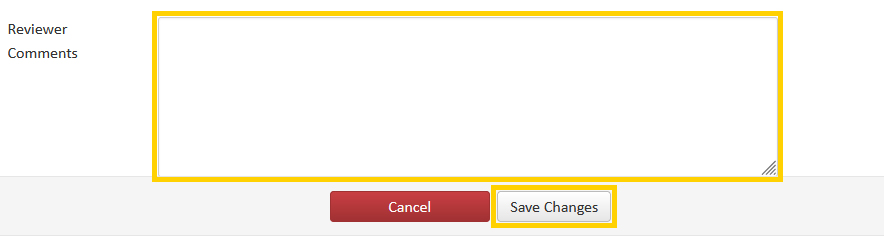
In the form, scroll down to the bottom and enter your comments in the Reviewer Comments field. Then, click the Save Changes Button.
One of four actions may be taken after reviewing a PLC form. Approvers can choose to edit, rollback, or approve the PLC form. Alternatively, the form can also be left alone and returned to at a later time.
From the header bar, click the white Edit Button to open the form. The form will open in a new window.

Add your comments and/or make the appropriate edits to the form. Once completed, click the Save Changes Button at the bottom of your screen to save your entries to the form.

Note: Clicking the Save Changes Button will save all changes made but will not submit the PLC form to the next step in the approval workflow. Below are instructions on how to submit the form to the next workflow step.
Approvers have the option to send a PLC form back to a previous workflow step.
Initiating a Rollback will require the form to go through all previously completed workflow steps again from the point in which you roll back the form.
To initiate a rollback, click the red Rollback Button in the header bar.

The Rollback Page tool pop-up window will open.
In the Rollback to field, select the workflow step you wish to send the form back to.

In the Comment/Reason field, enter the reason why the PLC form is being rolled back.

Once you have selected the rollback step and entered your rollback reason, click the Rollback Button to complete the rollback.

When the rollback is complete a Rollback Done message will appear in the Form Preview window. The member(s) of the workflow step you rolled the form back to will receive an email notification informing them of the need to review and/or edit the form again. The notification will also include the comments/reasons you entered for the form rollback.

Once you have completed your review of a PLC form you can send it to the next step in the workflow by approving it.
To approve a form, click the green Approve Button in the header bar.

When the approval is complete an Approved message will appear in the Form Preview window. The members of the next workflow step will receive an email notification informing them that the form is ready for their review.

If you are still reviewing a PLC form but are not ready to take an action, the form may be left for another time. You can select another form to review, or exit the Workflow tab on the CourseLeaf Dashboard. The form will remain in the system at your workflow step for you to take up at another time.