To add comments to a proposal, reviewers can navigate directly to the Workflow tab on the CourseLeaf Dashboard or click on the Page Approval link that is included in the automated email sent when it is their step in the workflow process.

Once on the dashboard, follow the Understanding the CourseLeaf Dashboard instructions to open the appropriate proposal in the Approval Screen.
Comments can be added to the selected proposal in two ways:
With the proposal opened in the Approval Screen, click the green Add Comment Button along the top right side of the Proposal Preview.

A comment box will appear directly below the button. Add your comment to the comment box and click the Save Button.

Your comment will be saved and display below the Consultation section of the proposal form under Reviewer Comments. Your comment will be displayed with a timestamp and username.
Note: These comments are viewable by all users and cannot be edited after they are posted.

From the Approval Screen header bar, click the white Edit Button to open the proposal. The proposal will open in a new window.

In the proposal, scroll down below the Consultation section and enter your comments in the Reviewer Comments field.

Once your comment is entered, click the Save Changes Button.
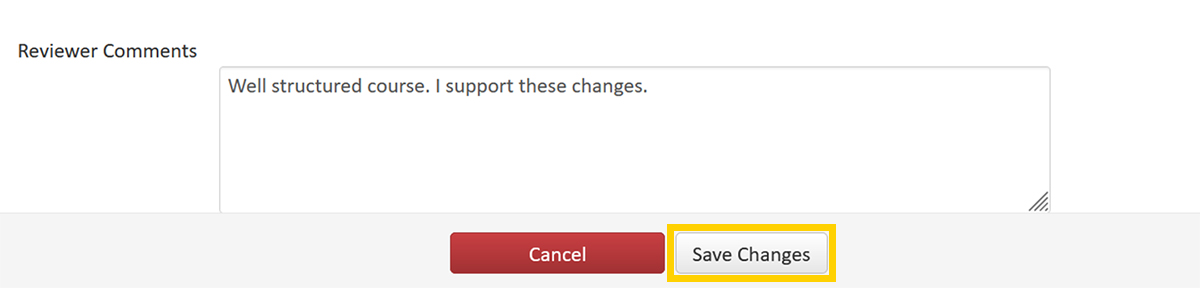
The proposal window will close. Your comment will be saved and display in the Proposal Preview window below the Consultation section of the proposal form under Reviewer Comments. Your comment will be displayed with a timestamp and username.
Note: These comments are viewable by all users and cannot be edited after they are posted.
Once you have reviewed the proposal and added any necessary comments, you can approve the workflow step by clicking the green Approve Button in the Approval Screen header bar.

If you intend to Rollback the proposal instead, you will be asked to make a comment in the Rollback action.